Understand the pixels behind the preview
GIF transparency, patches and complete PNG frames
A GIF can look correct during playback while its internal images look incomplete. Transparent pixels, frame patches and disposal instructions explain the difference. This guide follows the same canvas model used by the extractor and gives you checks for deciding whether an exported PNG is correct.
1. What GIF transparency represents
GIF transparency marks a palette entry as transparent for an image. It is not a smooth range of alpha values like a PNG can store. A decoded patch pixel using that entry contributes no new colour to the canvas. It may reveal a transparent background, or it may leave an earlier opaque pixel visible. Those outcomes depend on the canvas state before the patch is drawn.
This matters around logos, icons and animated overlays. An edge that was reduced to GIF palette colours cannot regain the original antialiasing merely by being saved as PNG. The exported image preserves the decoded result; it does not reconstruct a richer source. When evaluating a transparent edge, compare with the original GIF on a similar background and distinguish existing colour fringes from an extraction error.
2. Why optimized GIFs use patches
A full animation may contain a mostly stationary background and a small moving object. Saving the entire picture every time would repeat many pixels. GIF can instead store a smaller rectangle at a specified position on the logical canvas. Such a rectangle is often called a patch. Its size can be different from the dimensions shown for the overall animation.
The rectangle alone is not always the picture the viewer sees. Its transparent areas may expose earlier canvas pixels, while pixels outside the rectangle remain unchanged. An extractor that downloads each raw rectangle without compositing can therefore lose the background or show a moving object in an unexpectedly small image. Complete-frame export reconstructs the visible canvas at each step before creating a PNG.
3. Read the logical canvas
Think of the logical canvas as the sheet on which patches are drawn. The GIF supplies its width and height, patch positions and relevant background information. GIF Splitter creates a canvas at those dimensions and composes each frame in order. Every exported PNG uses that complete canvas size. The visible object can occupy only a small part of it without changing the output dimensions.
Our public sample is 480 × 300 with 24 frames, so those are also the expected dimensions of its PNG exports. Use it to compare full-size output with a scaled preview. The sample is not evidence for every transparency case: controlled disposal examples are more useful for that purpose. Never infer a patch size, transparent background or disposal method solely from the compressed file size.
4. Disposal 2 clears a region
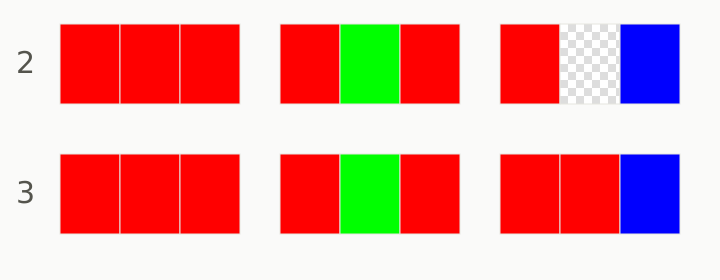
A disposal instruction controls the canvas after a frame has been displayed and before the following frame is drawn. Method 2 removes the previous frame rectangle, restoring the relevant background treatment in that region. The instruction applies to that rectangle, not automatically to the entire canvas. Pixels elsewhere can remain visible and form part of the following completed image.
In a controlled example, draw a red square on a transparent canvas, then use method 2 before drawing a blue square elsewhere. The next full image should no longer contain the red square, while unrelated retained pixels remain. An opaque GIF with a defined logical background can restore that background colour instead. Compare the complete frame with the fixture expectation rather than expecting all disposal-2 output to be transparent.
5. Disposal 3 restores an earlier state
Method 3 means restore to previous: the affected area returns to the canvas state from before the temporary frame was drawn. This differs from simply clearing the rectangle. If a temporary overlay covers part of an existing image, restoring previous brings those earlier pixels back. A decoder needs to retain that earlier state before it draws the overlay.
A useful controlled sequence shows a base shape, a temporary coloured overlay, and a subsequent patch. After the overlay is disposed, the base shape should reappear where it had been covered. If the exported next frame contains a blank hole or still shows the overlay, something differs from the expected composition. These fixtures explain the mechanism; they are not performance benchmarks or a guarantee for damaged GIFs.
6. Compare patches with complete frames
When checking extraction, use the sequence of completed images rather than comparing every PNG to a single raw patch. Note the patch position, the pixels already on the canvas and the disposal instruction applied after the preceding frame. The completed frame is captured after drawing the current patch and before disposing it. Changing that order can make an otherwise plausible image wrong.
The extractor handles transparent patches and the clearing or restoration required by methods 2 and 3. It does not add a decorative background to the output. For a reproducible check, use original geometric fixture files with known rectangles and colours. Record expected pixels inside the moving object, in its old position and outside its patch. This is stronger evidence than judging one thumbnail at a reduced display size.
7. Check transparent PNGs on different backgrounds
The preview checkerboard helps you see transparent areas, but it is an interface background rather than image data. Download a frame and open it in an application that displays transparency. Then place it over a white background and a dark background. If a checkerboard remains fixed inside the image itself, inspect the source: the pattern may already have been baked into that GIF.
Some viewers display transparent images on white or black without making transparency obvious. An apparent white rectangle therefore does not by itself prove that the PNG is opaque. Conversely, if the GIF already contains a solid white background, PNG conversion does not remove it. Background removal is a separate editing task. Check a pixel or alpha-channel view in your editor when visual inspection leaves the answer uncertain.
8. Choose the right remedy
For missing fragments or unexpected trails, compare adjacent frames and try the known fixture before blaming the download step. For source-colour fringes, return to a better original or edit the edge deliberately in another application. For a baked-in background, use an editor that supports background removal. For a damaged source, obtain a fresh copy. These actions solve different problems and should not be treated as interchangeable.
A complete PNG is a still image: it preserves the current composed pixels, not the GIF patch instructions or future animation. When importing a sequence elsewhere, preserve order and separately carry over timing. If you report a suspected compositing issue, include the frame number, expected result and browser, using a non-confidential example if possible. Do not publish someone else’s source or extracted art without the necessary permission.
Understand your GIF before exporting
Practical guides explain transparency, frame timing and the limits that affect PNG and ZIP downloads.
- How to split a GIF into frames
Learn how to split a GIF into frames, save one image as PNG, or download a numbered ZIP. Includes transparency, frame timing and advice for large files.
- GIF frame timing: recorded delays and preview playback
Learn how GIF frame delays work, why preview speed can differ and what PNG exports retain. Follow a four-frame example with 0, 10, 20 and 80 ms delays.
- Troubleshooting large GIFs, memory limits and ZIP downloads
Diagnose invalid GIFs, memory and pixel limits, long animations and ZIP export problems. Find practical next steps for local GIF frame extraction.